What is a virtual assistant portfolio?
A virtual assistant portfolio is a page that shows potential clients who you are, what services you offer, and proof that you can do the work. Proof means work samples, testimonials, certifications and the tools you know.
Today, the most useful kind of portfolio is an online one: a single web page with its own link, like vaportfolio.com/me/your-name. You can paste a link into a proposal, a LinkedIn message or an email in one second. A client can open it on any phone or computer, without downloading a file or asking for access.
Why you need one (even as a beginner)
Most VA proposals look the same: “I'm hardworking, a fast learner and very detail-oriented.” Clients read that line all day. A portfolio is what makes you different, because it turns claims into evidence.
- It builds trust quickly. A client who has never met you can see your face, your services and your work in under a minute.
- It answers questions before they're asked. What tools do you know? What kind of work have you done? How do I contact you?
- It makes you look established. Having your own professional page signals that you take your work seriously.
- It works for you everywhere. One link can go in every proposal, profile and application you send.
Beginners benefit the most. When you don't have reviews yet, a portfolio with good sample projects is often the thing that gets you your first “yes”.
What to include in a virtual assistant portfolio
A strong VA portfolio has the same building blocks, whatever services you offer. Here's what each one should contain.
1. A short introduction and a photo
Your name, your title (for example “Executive Virtual Assistant” or “Social Media Virtual Assistant”) and one or two sentences about who you help and how. A simple formula that works:
I help [type of client] with [what you do] so they can [result they want].
For example: “I help busy founders get their inbox, calendar and daily operations under control, so they can spend their week on the work only they can do.” Add a clear, friendly photo of your face. Clients hire people, and a photo makes you real.
2. Your services
List three to six services, each with a short description of what you actually do. “Email management” is vague. “I sort, label and reply to your emails daily, and flag anything that needs you” is clear.
3. Work samples
This is the heart of your portfolio. Two or three strong samples beat ten weak ones. For each one, show an image (a screenshot, a before-and-after, a document) and explain in a few lines what the task was, what you did and the result.
4. Tools you use
Clients often search for VAs who already know their tools: Google Workspace, Microsoft 365, Canva, Trello, Asana, Notion, Slack, HubSpot, Shopify and so on. List the ones you can use confidently.
5. Certifications
Free and paid certificates (Google, HubSpot Academy, Meta, Coursera and others) add credibility, especially when you're new.
6. Testimonials
A few lines from a past client, employer, colleague or someone you volunteered for. Include their name and role. If you don't have any yet, leave this section out for now rather than inventing anything.
7. Contact details and a booking link
Make the next step obvious: your email, your LinkedIn and, ideally, a booking link (Calendly, TidyCal, Google Calendar or similar) so a client can book a discovery call straight away.
How to create work samples with no experience
No clients yet? You can still show what you can do. Create sample projects: realistic tasks you complete on your own, exactly as you would for a client. Label them clearly as samples. That honesty builds trust, and clients mainly want to see your skills and your standards.
Some ideas, by service:
- Inbox management: set up a label or folder system for an imaginary business and share before-and-after screenshots, plus a few reply templates.
- Calendar management: plan a busy week for a fictional founder with color-coded meetings, focus blocks and travel time.
- Data entry: take a messy spreadsheet and clean, format and organize it. Show before and after.
- Social media management: create a one-month content calendar and three designed posts in Canva for a real or imaginary small brand.
- Research: write a one-page summary comparing five suppliers, tools or competitors, with a short recommendation.
- Customer support: write a set of reply templates for common questions, and a simple FAQ for a small online store.
- Project management: build a Trello or Asana board for a small product launch, with tasks, owners and deadlines.
Take clear screenshots, crop out anything private, and write two or three sentences for each: the goal, what you did, and why it would help a client.
Step by step: create your virtual assistant portfolio for free
You could build a portfolio with a general website builder, but that means designing pages from scratch. VAPortfolio is built only for virtual assistants: the sections above are already laid out for you, so you just fill them in. Prefer to watch? Here's the full walkthrough on video:
Or follow the steps below.
Step 1: Sign up and choose your link
Go to vaportfolio.com/signup, enter your email and choose a username. Your username becomes your portfolio link, for example vaportfolio.com/me/amina-bello. Use your real name if you can: it looks professional and is easy to remember. Confirm your email and you'll land on your dashboard.
Step 2: Pick a template, colors and fonts
Open the editor and choose one of the 6 free templates. Each one is designed specifically for VAs and looks good on phones and computers. Then choose your brand color and a font pair. You can switch templates at any time: your content stays the same.
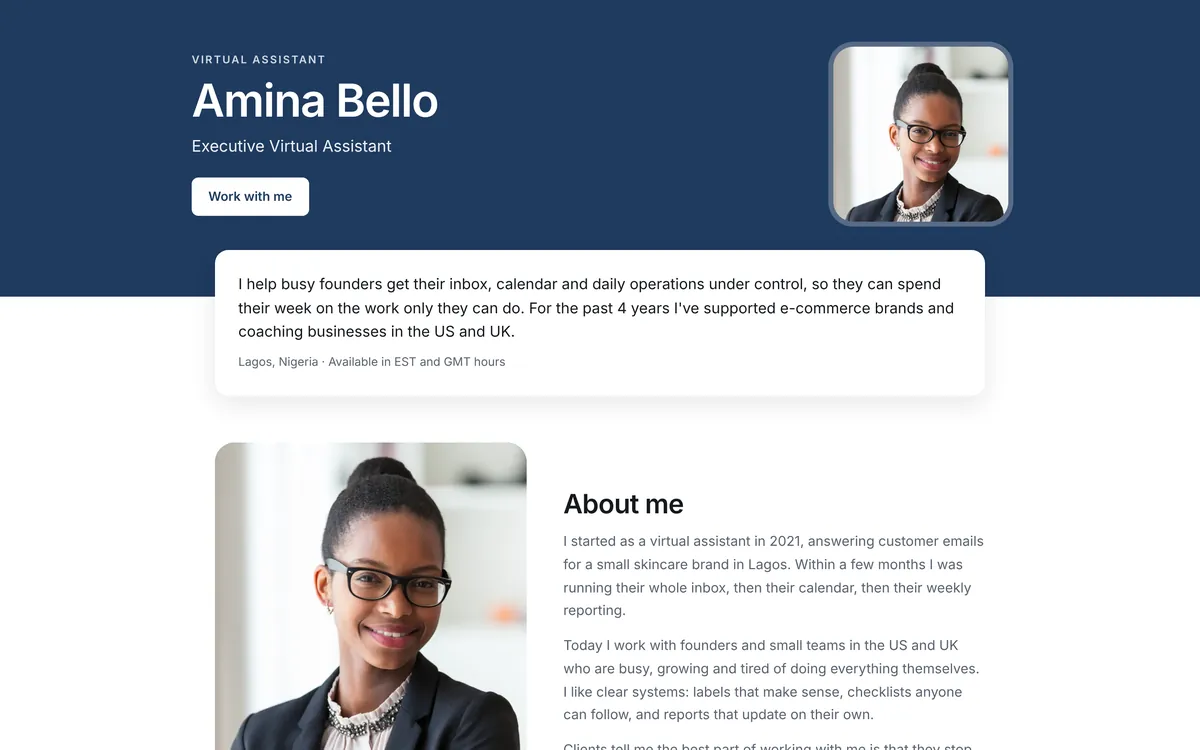
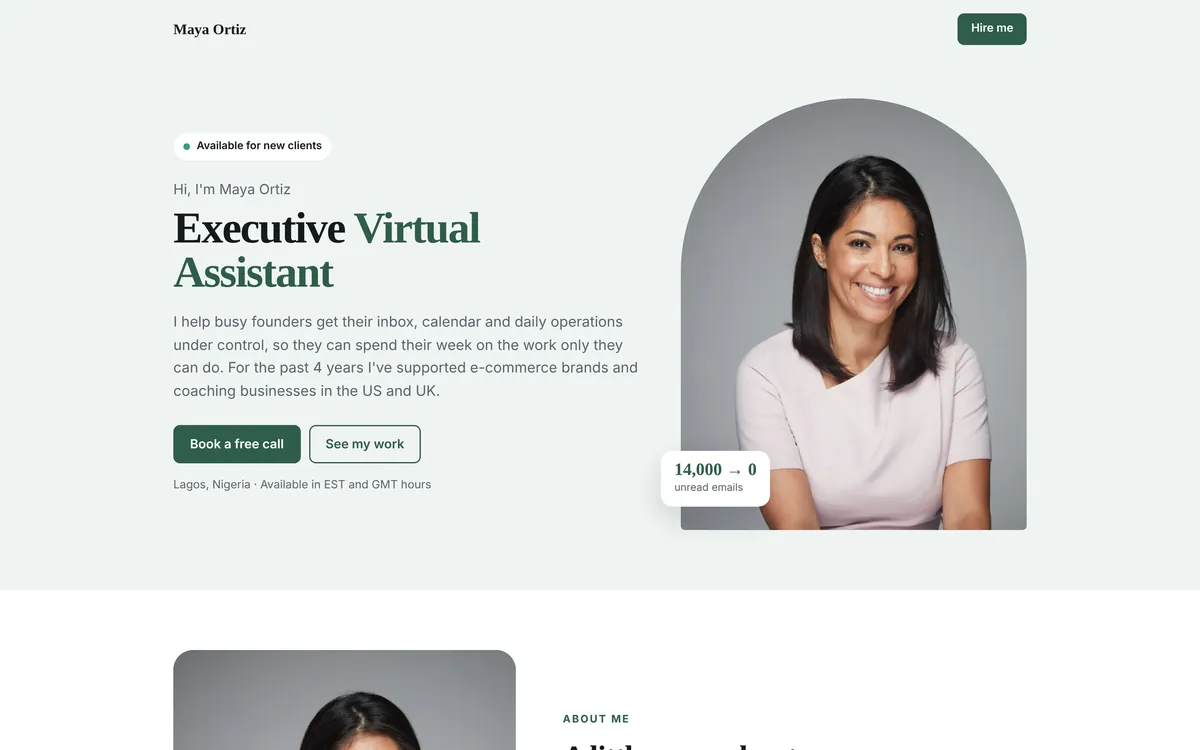
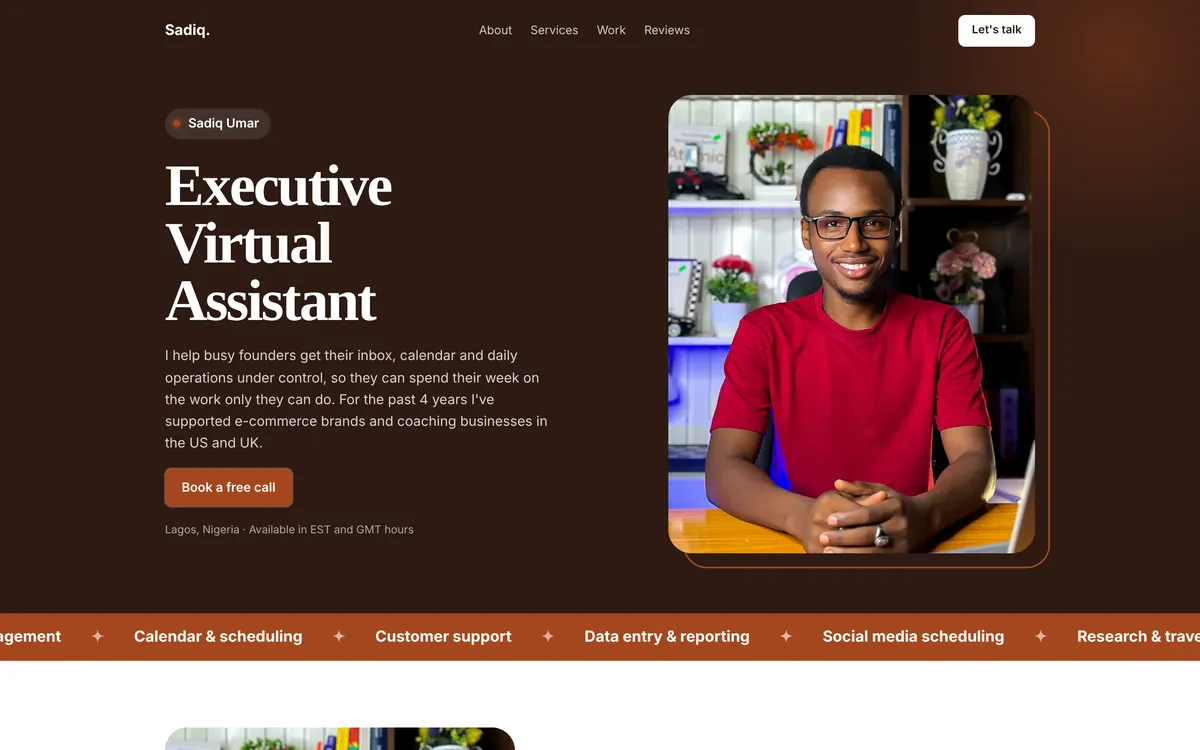
Step 3: Write your introduction and add your photo
In About you, add your name, your title, your location and working hours, and your short intro using the formula above. Upload a clear photo. There's also an About Me section for your story, if you want to share how you got started and what you enjoy working on.
Step 4: Add your services and tools
Add each service with a short description. Then add the tools you use. Keep services focused on what clients pay for, not every skill you have.
Step 5: Add your work samples
In the Portfolio section, add up to 3 work samples on the free plan. For each one, upload an image, add a title and a short description, add a few tags (such as “Inbox management” or “Canva”) and, if you like, a link to the full project.
Step 6: Add certifications and testimonials
Add any certifications with the issuer and, if you have it, an image of the certificate. Add up to 3 written testimonials and 2 video testimonials on the free plan. If you don't have these yet, hide the sections in Show or hide sections so your page stays clean.
Step 7: Add your contact details and booking link
In Contact, add your email, phone (optional), social profiles and a booking link. Your booking link powers the main button at the top of your page (such as “Book a free call” or “Work with me”), so clients can book a call in one click.
Step 8: Preview and publish
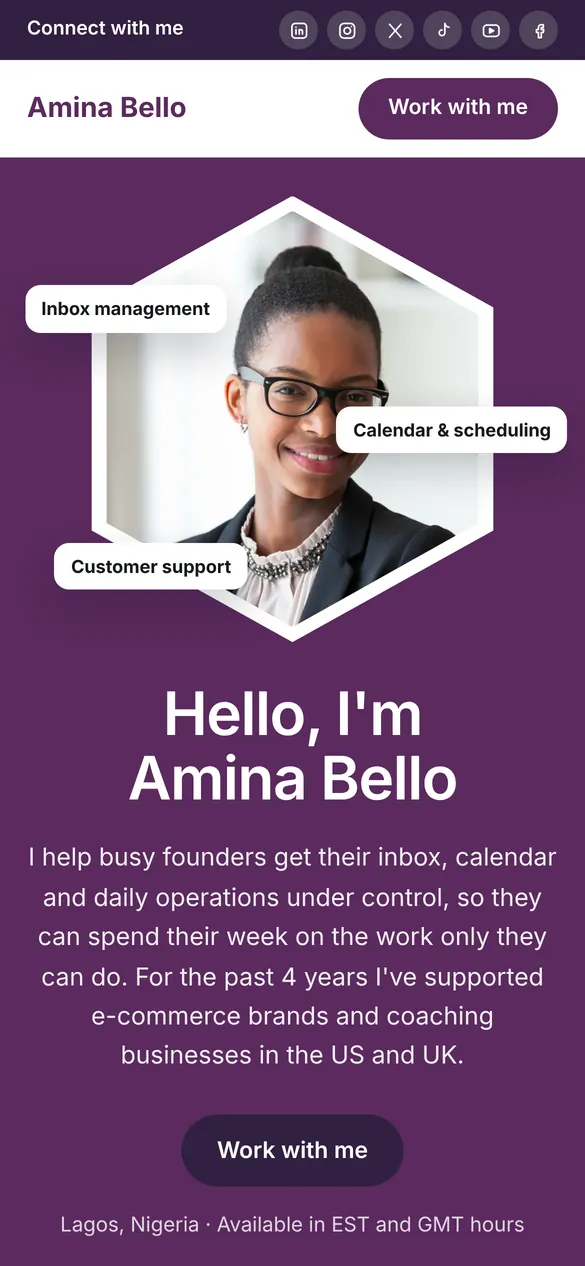
Switch to Preview to see your page exactly as clients will, on both computer and phone. When you're happy, go back to your dashboard and click Publish my portfolio. Your page is live, and you can copy your link straight away.
Where to share your virtual assistant portfolio
A portfolio only works if people see it. Once it's live, put your link everywhere a client might look:
- Every proposal and cold email. Add one line near the end: “You can see my work samples here: [your link].”
- LinkedIn. Add it to your Featured section, your contact info and your About section.
- Upwork, Fiverr, OnlineJobs.ph and other platforms, wherever profile links are allowed.
- Your CV, next to your email address.
- Your email signature, so every email you send promotes your work.
- Instagram, TikTok, X and Facebook bios.
Mistakes to avoid
- Listing every skill you have. Focus on the three to six services you want to be hired for.
- No work samples. A portfolio without samples is just a CV. Make sample projects if you need to.
- Long paragraphs. Clients skim. Keep descriptions short and specific.
- No clear next step. Always include a booking link or email, so a client who's interested can act immediately.
- Inventing clients or testimonials. It can end your reputation fast. Label samples honestly and add real testimonials as you earn them.
- Never updating it. Add new samples and testimonials as you complete projects. Your link stays the same.
Want to compare other ways of building a portfolio first? Read the best virtual assistant portfolio builders compared. Or, if you're thinking about a full website, see how to create a virtual assistant website for free.
Frequently asked questions
Can I create a virtual assistant portfolio for free?
Yes. With VAPortfolio you can create, publish and share a professional portfolio on the free plan, with no time limit and no card needed. The free plan includes 6 templates, your own link, and room for 3 work samples and 3 testimonials.
Do I need experience to make a VA portfolio?
No. If you haven't worked with clients yet, create sample projects that show how you would do the work: an organized inbox, a content calendar, a cleaned-up spreadsheet or a research summary. Label them as sample projects and be honest about it. Clients care most about whether you can do the task.
How long does it take to create a portfolio?
The setup takes a few minutes. Most of your time goes into writing your intro and preparing two or three good work samples. Plan for an afternoon if you're making samples from scratch, and 20 to 30 minutes if you already have them.
What should a virtual assistant portfolio include?
A short intro with your photo, the services you offer, two to three work samples, the tools you use, any certifications, testimonials if you have them, and a clear way to contact you or book a call.
Can I use my portfolio on Upwork, LinkedIn and in job applications?
Yes. Your portfolio is one link, so you can paste it into proposals, add it to your LinkedIn Featured section, your Upwork profile, your CV, your email signature and your social media bios.
Can I update my portfolio later?
Yes, any time. Changes you make in the editor are saved automatically, and your link stays the same, so everywhere you've shared it shows the latest version.